Claude Code: which keyboard shortcuts speed up your work and where they can get in the way
Claude Code in the terminal has more useful shortcuts than it first appears. This breakdown focuses on three especially practical actions: double Escape for a quick rollback, Ctrl+B to send tasks to the background, and Shift+Tab to switch modes without extra commands. It also covers conflicts with tmux and shell configurations, along with ways to remap the bindings to suit your own setup.
AI-processed from Habr AI; edited by Hamidun News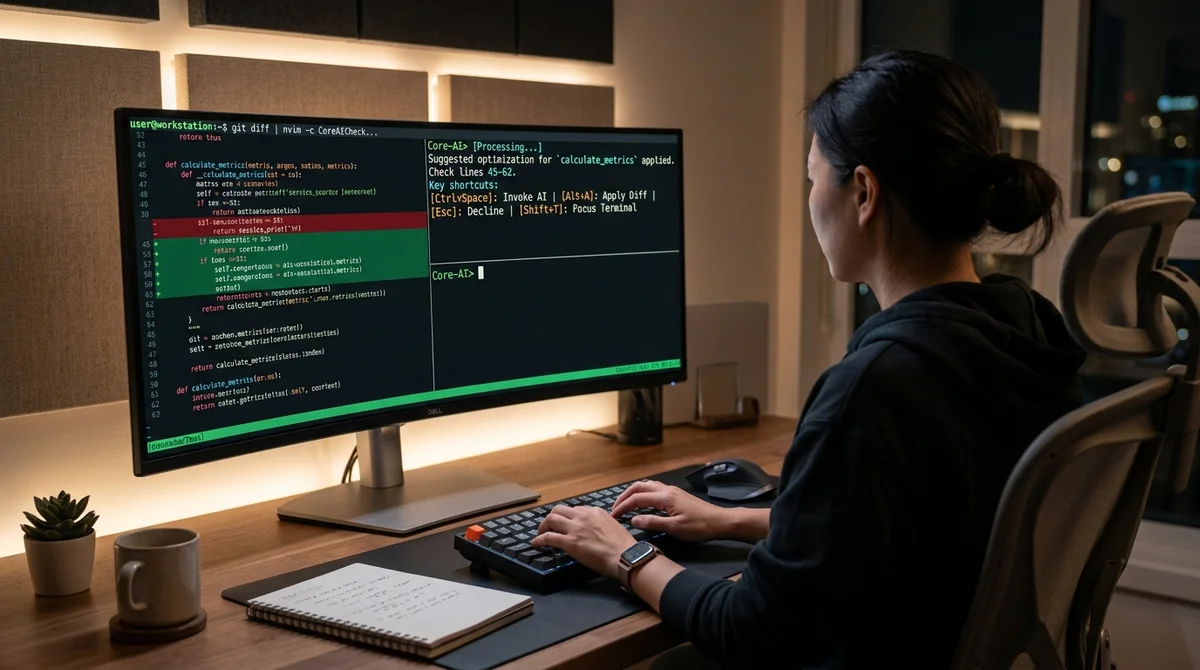
Claude Code turns out to have its own system of quick actions, and they noticeably speed up day-to-day development, putting it well beyond the role of an AI helper in the terminal. A look at its keyboard shortcuts shows that some of the most useful features sit behind key combinations that many users discover too late.
Keys for flow
The main point is simple: in Claude Code, speed depends on the quality of the model, but also on how quickly the user can drive the interface itself. When the assistant lives right in the command line, every extra pause between a thought and an action breaks your rhythm. That makes shortcuts part of the workflow, not cosmetics. A few keystrokes can undo a bad step, switch modes without extra dialogs, or move a long-running task out of the foreground.
- Double Escape: rolls back recent code changes if the assistant took a wrong turn.
- Ctrl+B: sends the current task to the background so it doesn't block the rest of your work.
- Shift+Tab: switches modes on the fly without breaking the current flow.
- Key remapping: lets you fit Claude Code to your personal habits and keyboard layout.
The value of these combinations shows most clearly in real sessions, when a developer edits a file, asks the assistant to rewrite something in parallel, and checks the result right away. In that mode, the mouse slows you down instead of helping. That is why the piece focuses on usage scenarios rather than a list for its own sake. A shortcut is only useful when you know exactly when it saves seconds and spares you a manual rollback.
Where conflicts arise
Terminal interfaces have an old problem: the same key combination may already be claimed by another program. With Claude Code, this hits hardest for people who work through tmux, custom shell configs, remote servers, or browser-based terminals. A shortcut that feels convenient in a clean environment can get intercepted earlier in a real setup and never reach the assistant at all. As a result, some users wrongly conclude that the feature doesn't work, when the thing breaking isn't Claude Code but the input chain.
Habits add another layer of problems. If someone has used the same bindings in their editor, terminal, and multiplexer for years, a new set of shortcuts feels like an obstacle. So the breakdown matters for its warnings as much as for its list of shortcuts: where conflicts can occur, which combinations overlap most often, and why blindly copying someone else's layout doesn't always work well. For advanced users, this is even more important than the default bindings themselves.
How to tailor it
The most practical takeaway is this: don't memorize shortcuts wholesale — build a set around how you actually work. If you mostly edit code after the model responds, fast rollback matters most. If you run several tasks in parallel, background operations are more useful. If you constantly jump between modes, instant switching without typing commands pays off. This approach reduces cognitive load: instead of a long list, you keep a short set of actions you really use every day.
This matters for teams too. Once an AI tool becomes part of a shared development environment, it helps to agree in advance on core shortcuts, conflict zones, and remapping rules. Otherwise, one developer will confidently use background tasks and quick rollback while another avoids those features simply because they clash with their tmux config. The sooner a team standardizes these things, the less friction there is in onboarding and collaboration.
What it means
Claude Code is increasingly evolving from a plain chat interface into a full-fledged developer tool. The better users know its keyboard mechanics, the less time they spend on routine work and the faster AI fits into the actual development process.
- Nov 1, 2026OpenAI Rewrites GPT Behavior Rules: Five Values and a Chain of Command
- Nov 1, 2026Google admits AI Mode cuts search revenue, shares fall 15%
- Oct 31, 2026Author puts his script before an AI jury: the verdict cost 850 thousand tokens
- Oct 31, 2026Anthropic: Fold Subagents Back Into a Single Loop — One Customer's Tasks Ran Twice as Fast
Key Questions Answered
What are the key details on Keys for flow?
The main point is simple: in Claude Code, speed depends on the quality of the model, but also on how quickly the user can drive the interface itself. When the assistant lives right in the command line, every extra pause between a thought and an action breaks your rhythm. That makes shortcuts part of the workflow, not cosmetics. A few keystrokes can undo a bad step, switch modes without extra dialogs, or move a long-running task out of the foreground. Double Escape: rolls back recent code changes if the assistant took a wrong turn. Ctrl+B: sends the current task to the backg
Where conflicts arise?
Terminal interfaces have an old problem: the same key combination may already be claimed by another program. With Claude Code, this hits hardest for people who work through tmux, custom shell configs, remote servers, or browser-based terminals. A shortcut that feels convenient in a clean environment can get intercepted earlier in a real setup and never reach the assistant at all. As a result, some users wrongly conclude that the feature doesn't work, when the thing breaking isn't Claude Code but the input chain. Habits add another layer of problems. If someone has used the
How to tailor it?
The most practical takeaway is this: don't memorize shortcuts wholesale — build a set around how you actually work. If you mostly edit code after the model responds, fast rollback matters most. If you run several tasks in parallel, background operations are more useful. If you constantly jump between modes, instant switching without typing commands pays off. This approach reduces cognitive load: instead of a long list, you keep a short set of actions you really use every day. This matters for teams too. Once an AI tool becomes part of a shared development environment, it he
Build & Ship Production AI Agents Without Boilerplate Code
Start your free 72-hour trial at Hamidun Academy (academy.hamidun.com) — interactive lessons on Claude Code & Cursor, live Tech Radar, and production agent templates.
The AI world, distilled — once a week
Seven stories that actually mattered, hand-picked. No noise, no reposts, no press releases.
Done! Check your inbox for a confirmation.